
InvizWorker User Manual
Introduction
The InvizWorker is a device designed to playback your natrual mouse activity when needed. By using natrual mouse movments we ensure believable behavior in any environment and reduce the risk of detection.
Website: https://inviz.work
Package Contents
- 1 × InvizWorker device
- 1 × USB-C to USB-A adapter
- 1 × Wall Power Adapter
Device Overview
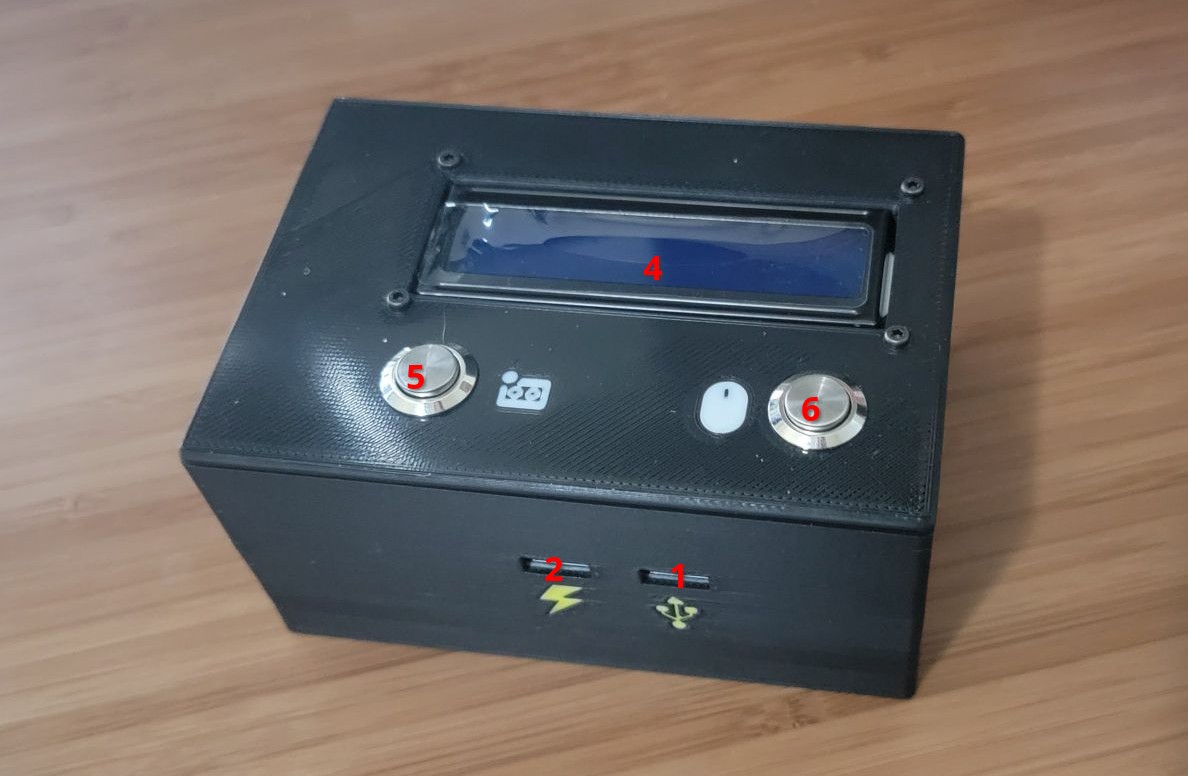
- USB-C Port (with logo): Connect to the computer for mouse passthrough.
- Power Input (USB-C): Connect to power using the provided adapter or another 5v 3A USB power source.
- Mouse USB Port: Plug in your regular USB mouse here.
- LCD Screen: Always on; displays current mode and status.
- Left Button (Record): Toggles recording mode on/off.
- Right Button (Playback): Toggles Jiggle(Playback) mode on/off.
Quick Start
- Connect your mouse to the USB port labeled with the mouse icon.
- Connect the computer to the USB-C port with the USB logo.
- Ensure both buttons are off (raised).
- Connect power to the unit via the provided USB-C adapter or another 5v 3A USB power source.
- The screen will light up. After a short pause, it will display the product name and website, followed by “Passthrough Mode”. In this state, all mouse activity passes through normally, and the computer sees your mouse as usual.
Modes of Operation
Passthrough Mode (Default)
- All mouse events are forwarded directly.
- The connected mouse ID and vendor information are visible to the computer.
Recording Mode
- Activate by pressing the left button.
- Records relative mouse movement events.
- No hard time limit, but recommended max is 12 hours.
- Deactivate by pressing the left button again.
Jiggle Mode
- Activate by pressing the right button.
- The InvizWorker replays your recorded movements exactly as captured, at the same timing.
- Loops automatically when the recording reaches the end.
- Deactivate by pressing the right button again.
- Playback is paused for 60s if the mouse is moved.
Best Practices for Recordings
Anchor Position
Start playback from a consistent point on the screen. Any misalignment shifts the entire replay.
Realistic Patterns
Move the mouse to hover over menus, buttons, or tooltips that would naturally highlight on hover. This creates believable on-screen deltas.
Keep It Short
A 1–3 minute loop is often enough to appear natural. Long recordings are rarely necessary unless under heavy monitoring.
Troubleshooting
No screen activity after powering
- Verify power connection via the provided adapter.
Playback seems misaligned
- Re-record from a consistent anchor position.
- Shorten recording time for tighter looping.
Mouse not detected
- Ensure you connected the mouse to the InvizWorker.
- If the mouse is using a USB receiver, ensure it is connected to the InvizWorker, and that the mouse has been previously paired to the receiver.
- Bluetooth devices (without a USB receiver) are not supported.
Disclaimers
- The InvizWorker is a tool for legitimate use only. We are not responsible for any misuse of the device.
- The InvizWorker is a versatile tool and can be used for a variety of purposes. However, we do not condone or support any illegal or unethical use of the device.
- While we strive to make the InvizWorker as undetectable as possible, we cannot guarantee that it will not be detectable by any security software or monitoring tools. Please use at your own risk.
Support
For support, please contact us at [email protected].